

If you want a practical system to organize your teaching notes and reduce time spent on admin, the Teacher Hub updates make that possible. This guide walks through the new dashboard, package tracking, private teacher notes, parent reports, the Start Next Lesson flow, and how workbooks and resources attach to feedback so you can organize your teaching notes in one place.
Quick highlights: what changed and why it matters
The Teacher Hub received a clean facelift designed around teacher feedback. The updates focus on three goals:
- Faster daily admin — Start lessons, log progress and update packages in fewer clicks.
- Clearer parent communication — Parent reports now display lesson history and downloadable resources automatically.
- Private teacher workflow — Internal notes keep planning and coaching ideas visible only to you, while parent-facing notes stay clean.
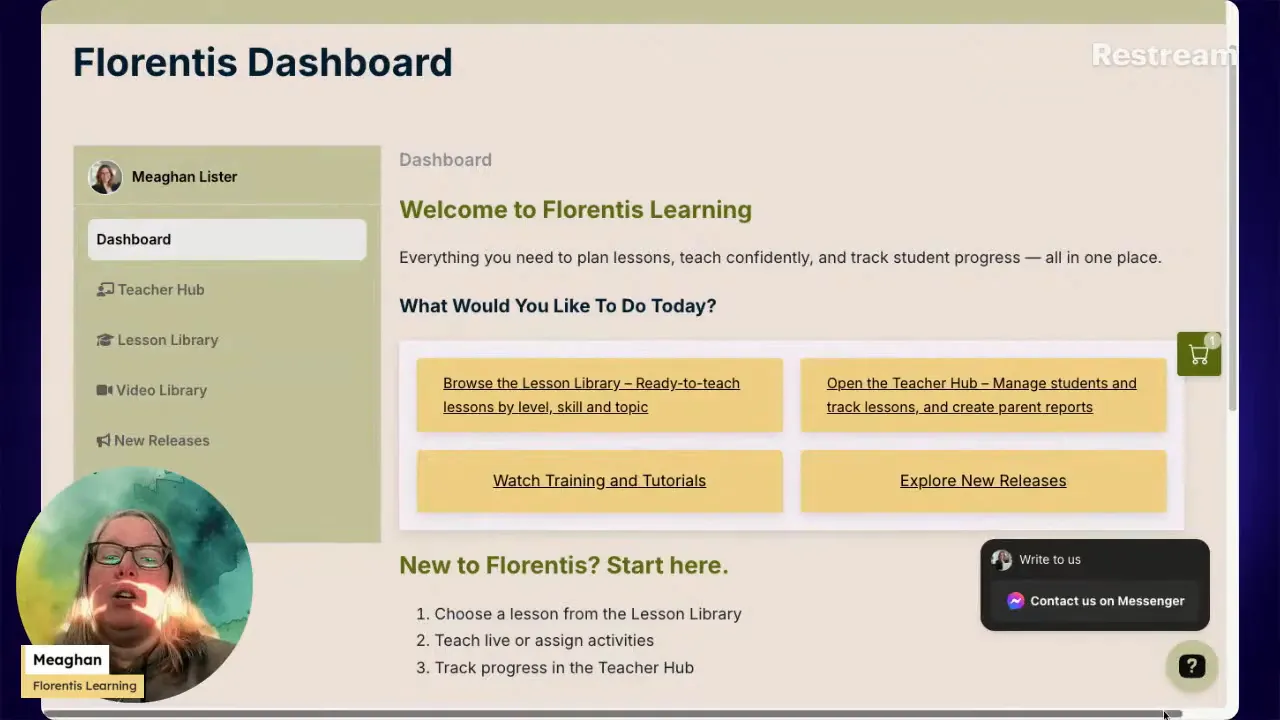
Teacher Hub dashboard and the new Help button
The dashboard centralizes the lesson library, video resources and a “New Releases” feed so you always know what’s been added. A small help button sits in the lower corner for quick contact; it can be dismissed while teaching so it does not interfere with live lessons.
Package tracking: turn it on only when you want parents to see it
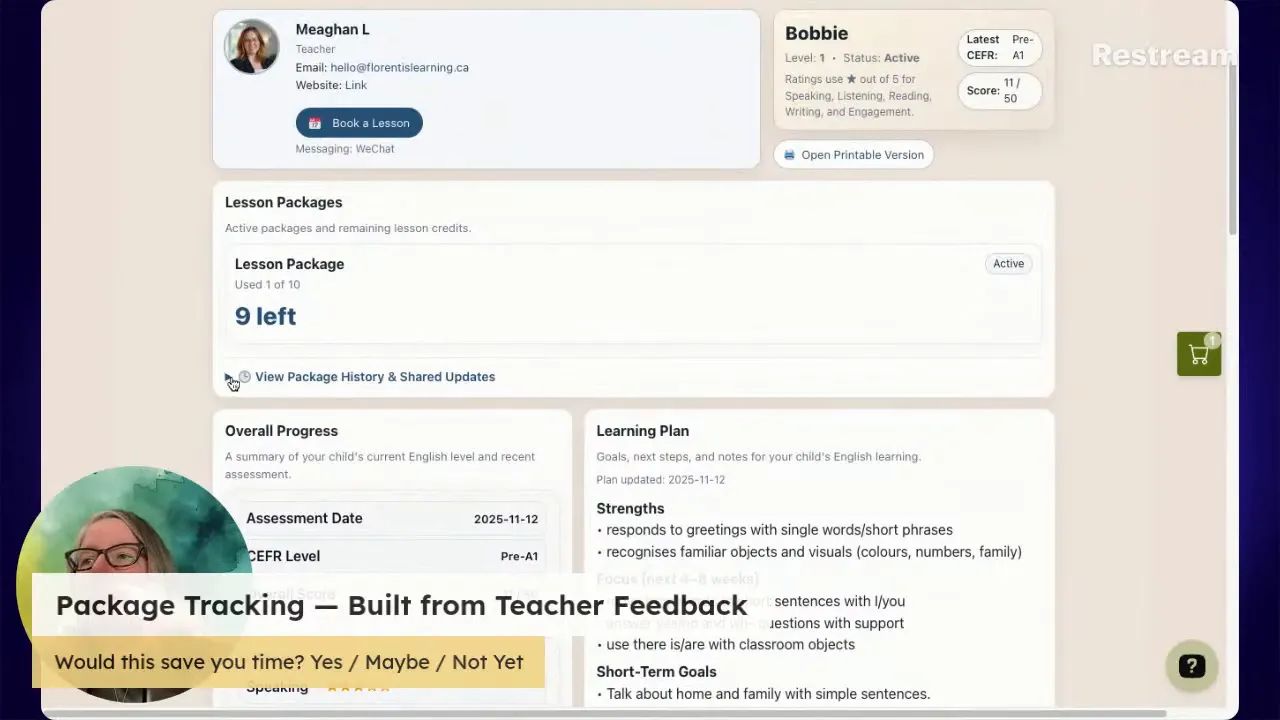
Package tracking is now a built-in option on the dashboard. If you prefer not to show packages to parents, toggle the feature off in dashboard settings. When enabled, each student row shows a package count (for example, 9 of 10 lessons remaining).
How to create and manage a package

- Open the student row and click Create a Package.
- Select the student, enter credit count (for example, 10), set an optional expiry date, and add a parent note if needed.
- Click Create Package. The dashboard updates immediately to show credits remaining.
Package adjustments (bonus credits, referrals) appear in package history so parents can see how totals changed. If multiple packages exist, completed packages move to a separate completed section in the parent view.
Recording lessons and keeping internal teacher notes
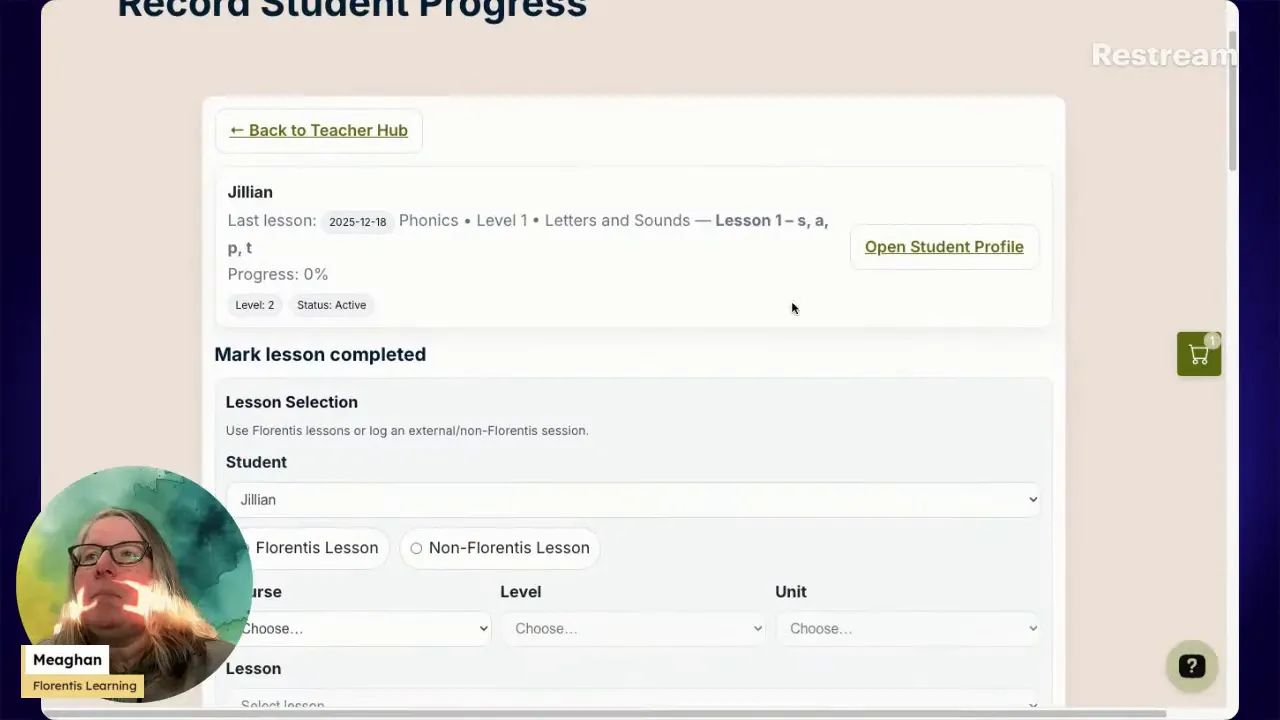
Lesson logging is faster and more flexible. Choose a Florentis lesson or select Non-Florentis Lesson to add a custom title. Each record includes:
- Lesson title and date
- Star rating or points
- Class status (Completed, No Show, Canceled)
- Next steps (parent-facing summary)
- Teacher note — internal (this is private to you)
Use the internal note to record ideas for follow-up, items to discuss with parents, or observations you do not want visible on parent reports. These internal notes remain private in the student profile.
Parent link and parent reports
The parent link shows package totals, lesson history, stars and any external tags. Workbooks and worksheets attached to lessons appear automatically in parent feedback so parents can download homework without extra steps from you.
Start Next Lesson and Assigning the Next Lesson
A dedicated Start Next Lesson button takes you directly to the next sequenced lesson so you don’t have to search the course menu during class. For mixed or custom programs, assign the next lesson on the student profile so the Start Next Lesson button knows what to open.
Workbooks, worksheets and attaching resources
On the lesson record, you will find Additional Resources at the bottom of each lesson including workbooks, flashcards, lesson previews and games. They’re aligned to lesson content and include practice, review and writing tasks suitable for the lesson level. If you create progress notes for your students through the Teacher Hub for Florentis Learning lessons, any additional relevant resources are automatically attached to the note.
- Level one workbooks include tracing and simple fills.
- Level three workbooks have more writing and review activities.
- Phonics lessons now include worksheets.
- Levels four to six include worksheets.
Practical workflow: How to organize your teaching notes inside the Teacher Hub
Use this simple routine to keep notes, resources and parent communication tidy and consistent:
- Before the week: Open each student profile, assign the next lessons and add a quick private note with goals for the week.
- During class: Use Start Next Lesson to open materials and record progress immediately afterward. Optional – Fill in Next Steps (parent-facing) and a short internal teacher note with follow-up items.
- After class: Attach the worksheet or workbook if relevant (they attach automatically when available) and double-check package balances.
- Weekly review: Export your student list if you keep a separate tracker, or use the student export to create a backup snapshot. Move inactive students off the main dashboard to reduce clutter.
These steps help you organize your teaching notes in one system, reduce duplicated tracking, and make parent communication predictable and professional.
Tips to save time
- Turn off package visibility until you start using packages with a family.
- Keep Next Steps short and actionable for parents (one-sentence focus).
- Use internal teacher notes for private coaching suggestions or test reminders.
FAQ
How do I enable or disable package tracking on the dashboard?
Open the dashboard settings wheel in the top corner and toggle the package option on or off. When off, parents will not see any package information on their parent link.
Can parents see my internal teacher notes?
No. Internal teacher notes are private and visible only to you in the student profile. Use them for planning, referrals, or anything you do not want to appear on parent reports.
How are workbooks and worksheets shared with parents?
Workbooks and worksheets attach automatically to parent feedback under Additional Resources. You can also download and send them manually if you prefer.
What’s the easiest way to start the next planned lesson?
Use the Start Next Lesson button on the dashboard. For non-sequenced or custom programs, assign the next lesson from the student profile so the Start Next Lesson button opens the correct session.
How can I export my student list for backups?
Use the export option in the Teacher Hub to download your student list. This is useful for periodic backups or when you want to create your own offline tracker.
Organizing your teaching notes doesn’t have to be a separate chore. The updated Teacher Hub brings your lesson history, private planning notes, parent communication and practice resources together so you can spend more time teaching and less time managing.
Leave a Reply